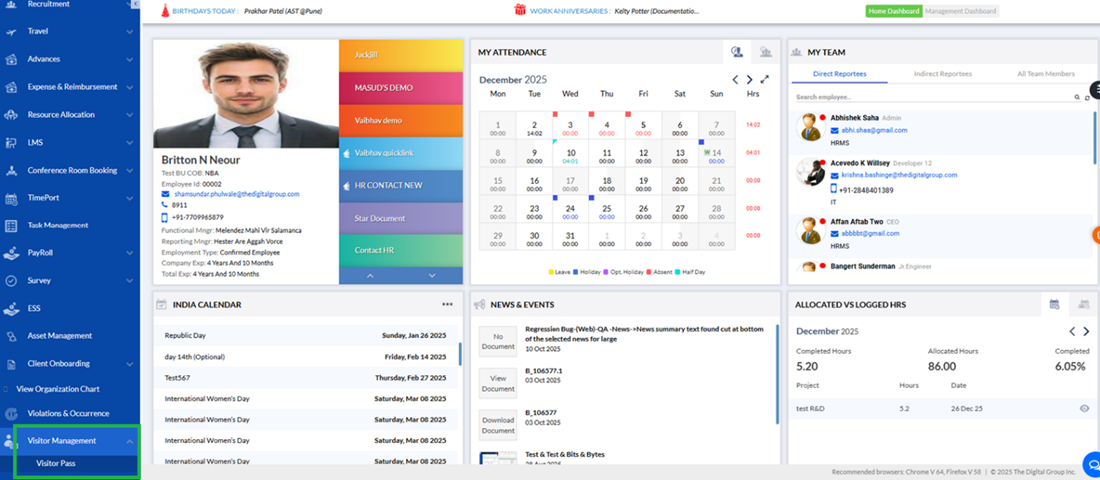
Access Rights Management
Admin profile
To configure access permissions for different user roles, navigate to the "Setup Roles Permission" tab within the "Access Right Management" section. A list of predefined roles—such as “Manager”—is available here.
To modify the permissions for any specific role, select the desired role from the List of Roles at the bottom and click the Edit icon. This opens a detailed configuration panel where various access options can be defined. Permissions can be assigned to pages modules such as Visitor Management, Check-In/Check-Out, and more from the “Access To Pages” section. Access can also be filtered based on report visibility—allowing users to view only their own data, their team’s data, or all data, depending on organizational requirements.
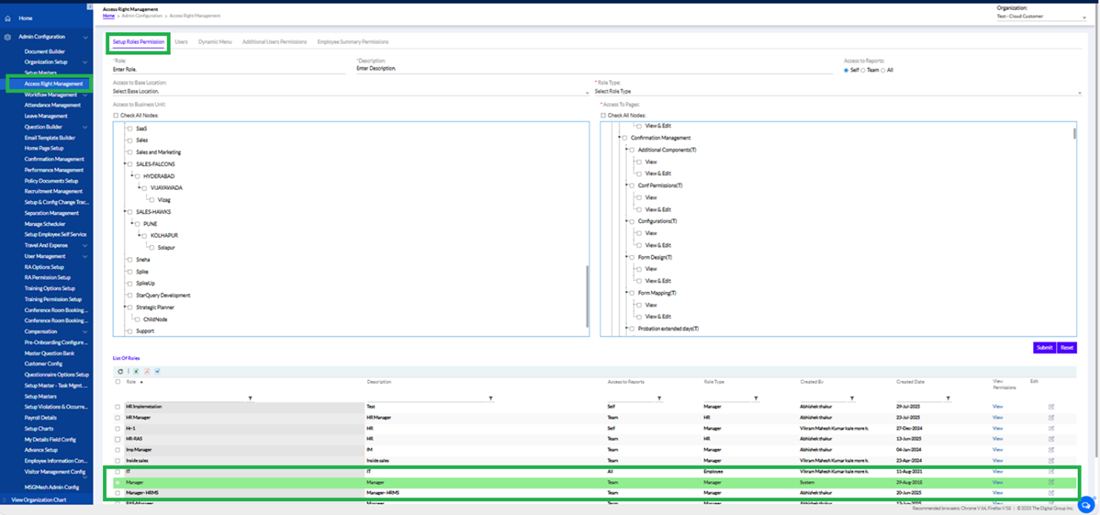
Once in the configuration panel, administrators can granularly control the level of access for that role. Options such as View and Edit can be enabled or disabled per module or sub-feature. The right-hand section visually outlines all selectable permission nodes, allowing admins to simply check or uncheck specific boxes to grant or restrict actions.
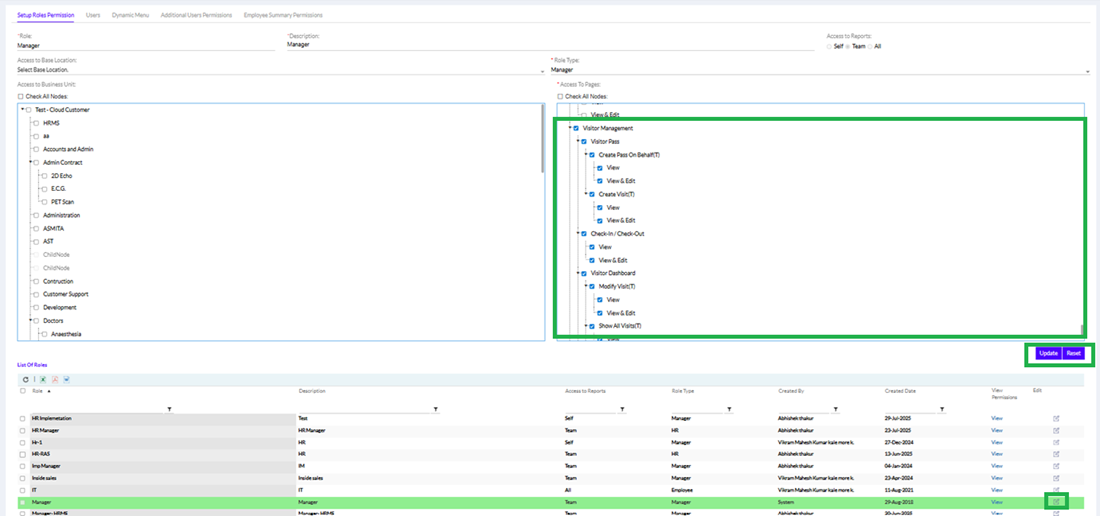
After all, required permissions are selected, clicking the Update button will save the configuration, applying the access rights to all users assigned to that role. This ensures organizational policies are strictly followed and that each user only accesses information relevant to their responsibilities.
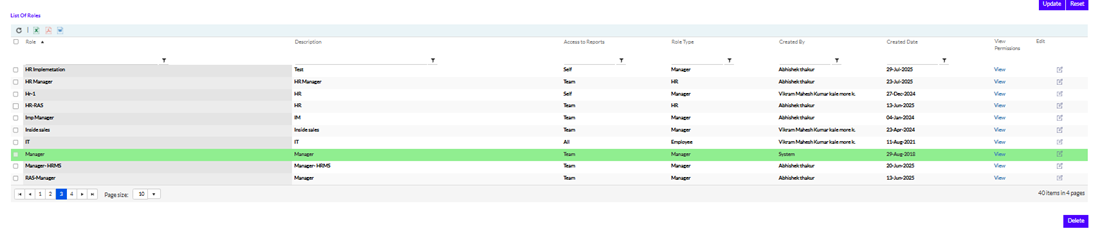
Upon clicking Update, the screen refreshes to reflect the saved changes. To make further modifications, the administrator must reselect the desired role from the List of Roles before viewing or editing its associated permissions. This process ensures the updated permissions are correctly reloaded and helps prevent accidental changes without explicit role selection.
Managing Access
The provision of managing access in Access Rights Management gives or removes access to a user by the Admin user.
Scenario-Initially, when accessing the Manager profile, the Check-In / Check-Out feature was available as part of their permissions. This allowed managers to perform actions related to visitor check-ins and check-outs without restriction.
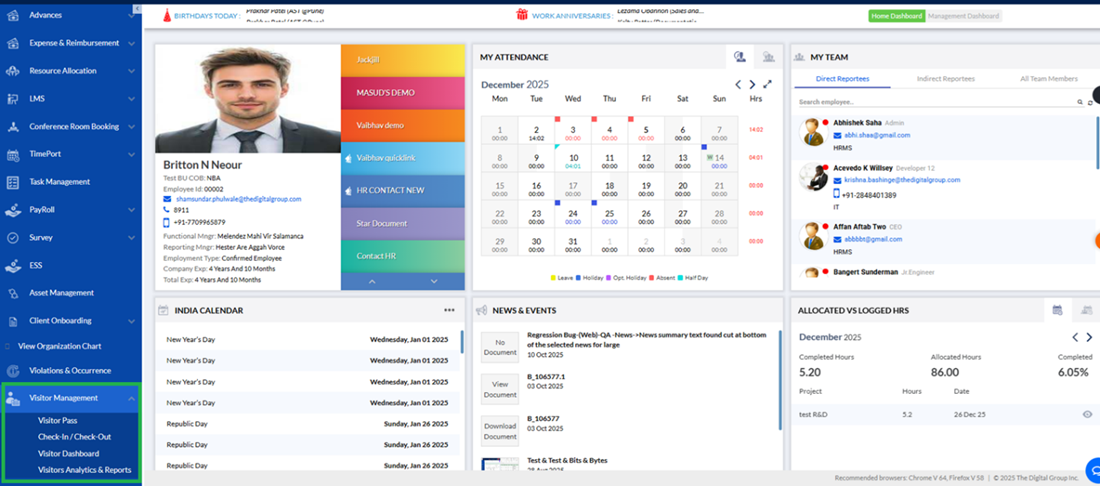
However, after updating permissions in the Set Roles Permission section—specifically by revoking access to the Check-In / Check-Out module—and saving the changes, the role’s access was immediately modified.
When navigating back to the User page for that same manager profile after the update, the Check-In / Check-Out option was no longer visible. This confirmed that the permission changes took effect successfully, restricting access to the removed functionality in real time based on the defined role configuration.