
Form Designing
Admin can configure the type of form here depending on 5 types. Competency, KRA, Goal, KRA & Competency, and Goal& Competency.
Appraisal Type & Combination, Configure Form Name, Configure Weightage Calculation, Configure Additional Content.
In Competency, define the Competency Section as showed add Form Name add Description.
Keep adding sections till total percentage should be 100, may be 1 or several rows can be added.
Can be added for individual or for cumulative.
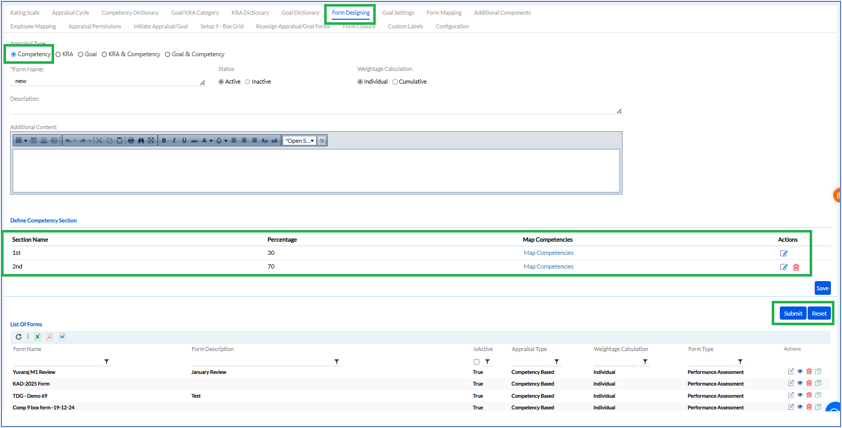
Click Submit (as highlighted in the above screen) to design a new Competency Form. Define Competency Section with section name, percentage (total should be 100), map competencies and actions (add/edit).
Previously designed forms are displayed in a list below. The list can be exported in Excel, PDF or Word format by clicking respective icons.
In KRA, define the KRA Section as showed below
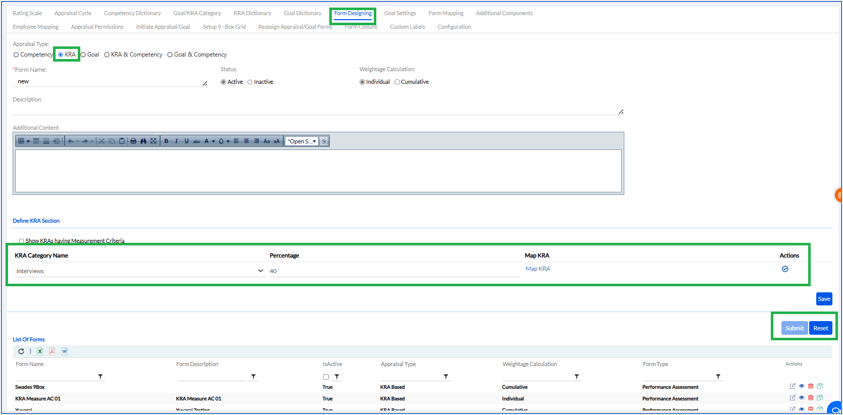
Click Submit (as highlighted in the above screen) to design a new KRA Form.
Previously designed forms are displayed in a list below. The list can be exported in Excel, PDF or Word format by clicking respective icons.
In Goal, define the Goal Section as showed below
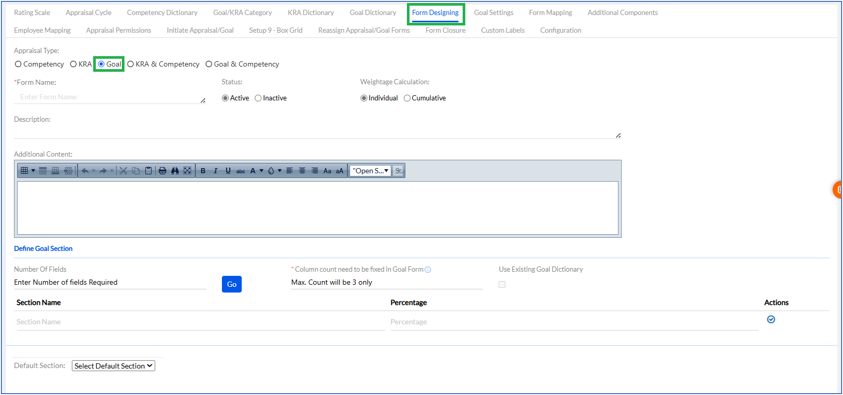
Click Submit (as highlighted in the above screen) to design a new Goal Form.
Previously designed goal forms are displayed in a list below. The list can be exported in Excel, PDF or Word format by clicking respective icons.
In KRA & Competency, define the KRA Section and Competency Section as showed below
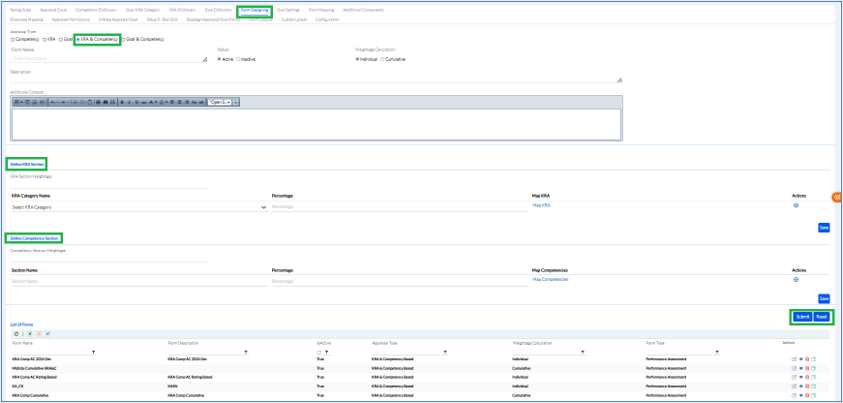
Click Submit (as highlighted in the above screen) to design a new Goal Form.
Previously designed goal forms are displayed in a list below. The list can be exported in Excel, PDF or Word format by clicking respective icons.
In Goal & Competency, define the Goal Section and Competency Section as showed below
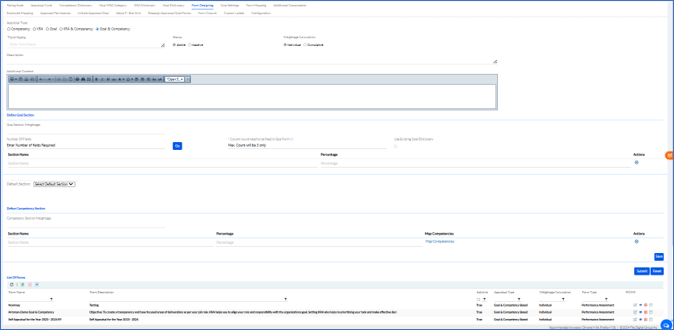
Click Submit (as highlighted in the above screen) to design a new Goal Form.
Previously designed forms are displayed in a list below. The list can be exported in Excel, PDF or Word format by clicking respective icons.