
Candidate Login Link
The recruiter can ask the candidate to add information directly here, like PAN details.
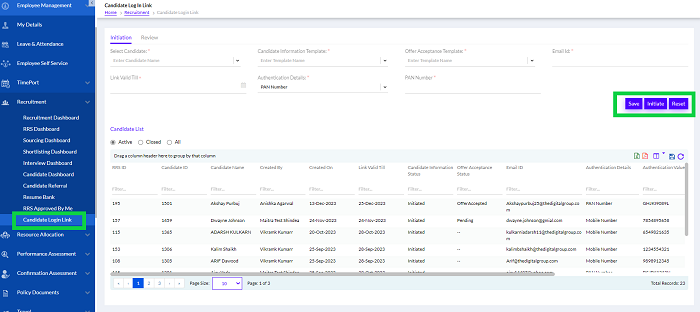
There are 2 tabs- Initiation and Review.
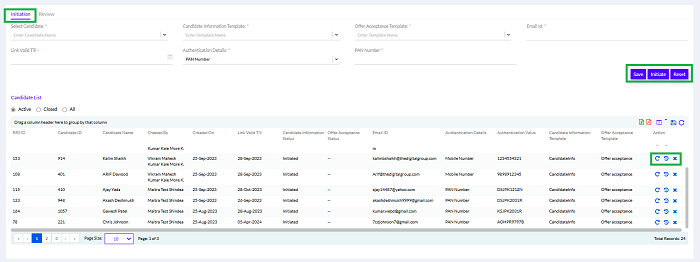
In Initiation tab the Candidate login Link is initiated. Select Candidate, Candidate Information Template: Enter Template Name, Offer Acceptance Template: Enter Template Name, Email ID Link Valid Till, Authentication Details (PAN no/ADHAR etc.), PAN Number and click on Save. The previously added candidate details which are added by the candidates after logged in are displayed in a list below.
The columns can be grouped together by dragging the column header as shown in the below screen or a Filter can be used to filter the data in the grid, or can be exported in the form of Excel or PDF format by clicking on the respective icons as shown below. It can also be saved or reset by clicking on the respective icons. There are three action buttons for different functions. The “ ” button if clicked, reshares the details to the candidates, the “
 ” button displays the history details and the “
 ” button if clicked, force closes the link.
” button if clicked, reshares the details to the candidates, the “” button displays the history details and the “” button if clicked, force closes the link.In Review tab, 4 status like Initiated, Pending for Review, Re-fill and Closed can be viewed. The user can select the relevant boxes to view only those.
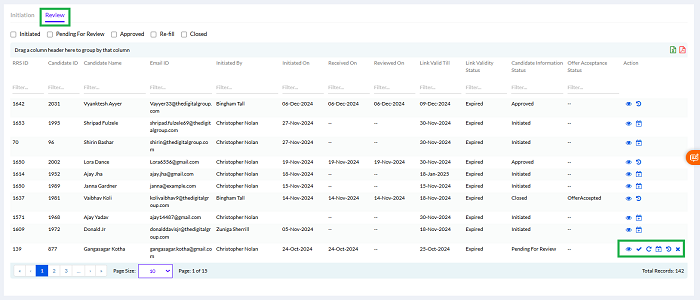
There are few action buttons here as well. The “ ” button is to view details, the “
 ” button for Approved status, “” button if clicked, reshares the details to the candidates, the “” button displays the history details, the “
 ” button for extending the link validity and the “” button if clicked, force closes the link .
” button is to view details, the “” button for Approved status, “” button if clicked, reshares the details to the candidates, the “” button displays the history details, the “” button for extending the link validity and the “” button if clicked, force closes the link .