
Additional Components
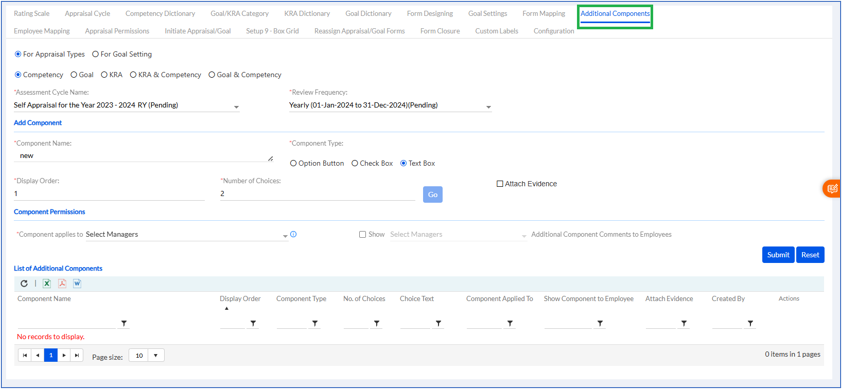
- For Appraisal Types
- For Goal Setting
- Competency
- Goal
- KRA
- KRA & Competency
- Goal & Competency
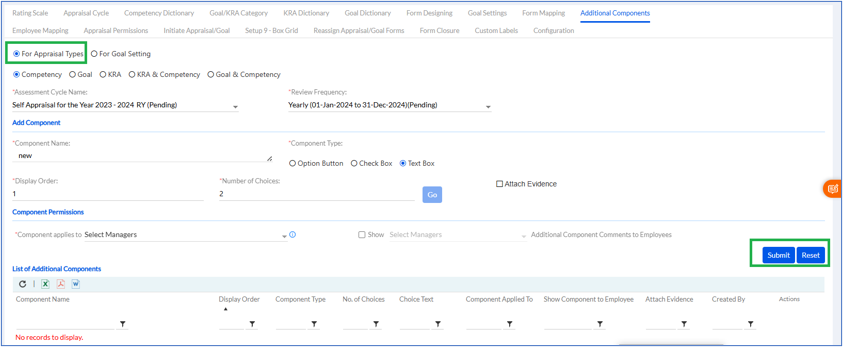
Add the details like selecting the Select Assessment Cycle Name, Component Name, and Component Type (Option Button, Check Box, Text Box), Display Order, Number of Choices to be given, Click the box Attach Evidence. Component Permissions section has option to select Component applies to from the dropdown, click on checkbox to Show (select manager level) and Submit.
Previously added Additional Components are displayed in List of Additional Components. The list can be exported in Excel, PDF or Word format by clicking respective icons.
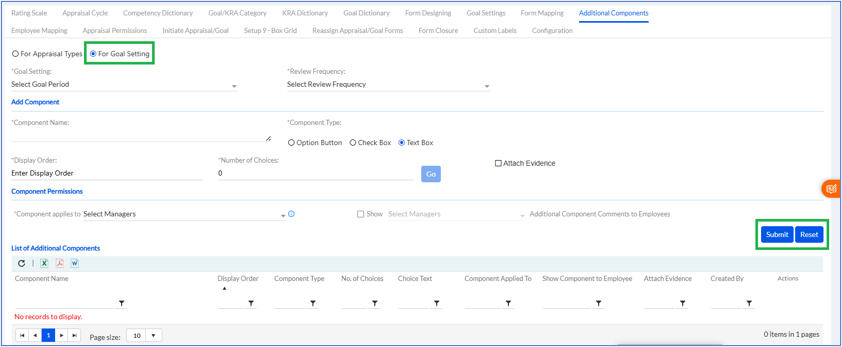
Fill in the Goal Setting by Select Goal Period, and Review Frequency type (Monthly, Quarterly, Half Yearly, and Yearly) Display Order, Number of Choices to be given, Click the box Attach Evidence. Component Permissions section has option to select Component applies to from the dropdown, click on checkbox to Show (select manager level) and Submit.
Previously added Additional Components are displayed in List of Additional Components. The list can be exported in Excel, PDF or Word format by clicking respective icons.
- Enable Additional Components in Goal Setting (Employee Visibility)
A new configuration option “Enable Goal Additional Comp
onents” has been introduced in the Configuration section. Previously, additional components created in Goal Setting were not visible to employees. With this enhancement, once the setting is enabled, any additional component created and assigned to Employee will now appear in the employee’s goal form for completion.
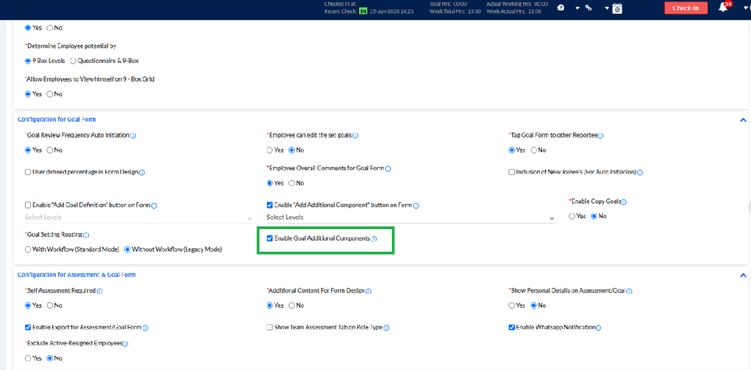
The Enable Goal Additional Components setting allows administrators to make additional goal-related fields visible at the employee level. This configuration is available under:
Performance Management > Configuration
When enabled, any additional component created under the Additional Components tab and mapped to employees will be displayed in the employee’s goal form during the review cycle.
This enhancement improves flexibility by allowing organizations to collect extra information from employees directly within the goal-setting process, such as project updates, achievements, challenges, or structured data inputs.
Example:
If the HR team wants employees to submit project milestone details in their M1 review cycle, they can create an additional component and assign it to employees. Once the cycle is initiated, employees will see this section in their goal form.
- New “Editor” Component Type Added in Additional Components
A new Editor option has been added under Component Type in the Additional Components tab. Earlier, only simple input types like Text Box, Checkbox, and Option Button were available. With the Editor type, users can now enter rich text content.
The Editor component type provides advanced text editing capabilities in additional components. It can be configured under:
Performance Management > Additional Components
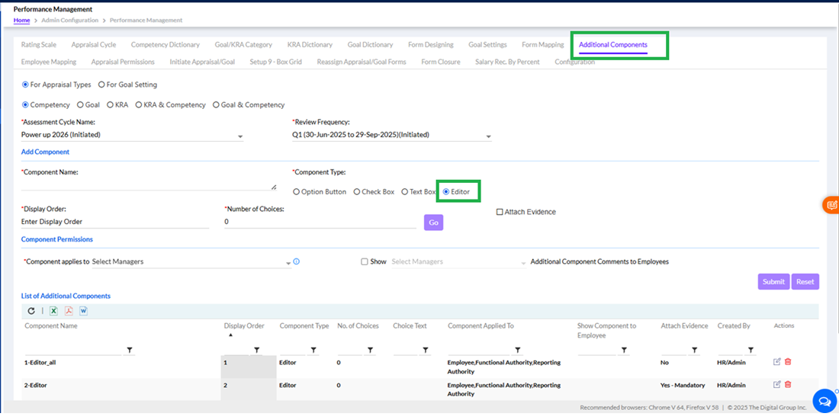
While creating an additional component, the administrator can now select Editor as the component type.
The Editor allows employees to:
- Enter formatted text
- Change font style, size, and color
- Insert tables
- Copy and paste data directly from Excel
- Paste screenshots or images
- Add structured information in tabular format
This enhancement is useful when organizations need detailed responses instead of plain text.
Example:
An employee can copy a performance tracker from Excel and paste it directly into the Editor field during goal submission, maintaining the table structure.
- Editor Functionality Extended to Confirmation Management
The same Editor component functionality is now also available in the Confirmation Management module. This means organizations can use rich-text additional components not only for PMS but also during employee confirmation evaluations.
The Editor option in Additional Components has now been extended to Confirmation Management, allowing administrators to create advanced input sections in confirmation forms.
This enables managers and employees to provide:
- Detailed review notes
- Structured feedback tables
- Screenshots as supporting information
- Evidence-based confirmations
The setup process remains the same as in Performance Management.
Example:
During an employee confirmation review, a manager can paste a competency evaluation table or attach screenshots directly into the Editor component.
Important Functional Behavior
- If Attach Evidence is marked as Mandatory, employees must upload supporting documents before submission.
- Once submitted, the additional component data remains visible throughout:
- Goal submission
- Assessment review
- Approval workflow
- Final acknowledgment stage (in disabled/read-only mode)
This ensures complete visibility and audit continuity across the performance lifecycle.
A comparative view is introduced during bulk form submission for selected team members.
Functionality:
- Managers can review multiple employees’ forms together.
- Comparative performance evaluation is easier in one screen.
Managers can now input ratings and comments for all selected employees directly from the comparative modal.
Benefits:
- Faster bulk assessment completion
- Reduced manual effort
- Centralized review process