
RR - Notifications
The system uses workflow templates to control how approvals and email communications are handled across different modules. Before any email is triggered, workflows must be properly configured. These workflows define who receives emails, who approves requests, and who gets notified at different stages of a process.
This ensures that every action-such as submitting a request or making a configuration change-follows a structured and consistent communication flow.
1 Creating a Workflow
To create a workflow, navigate to:
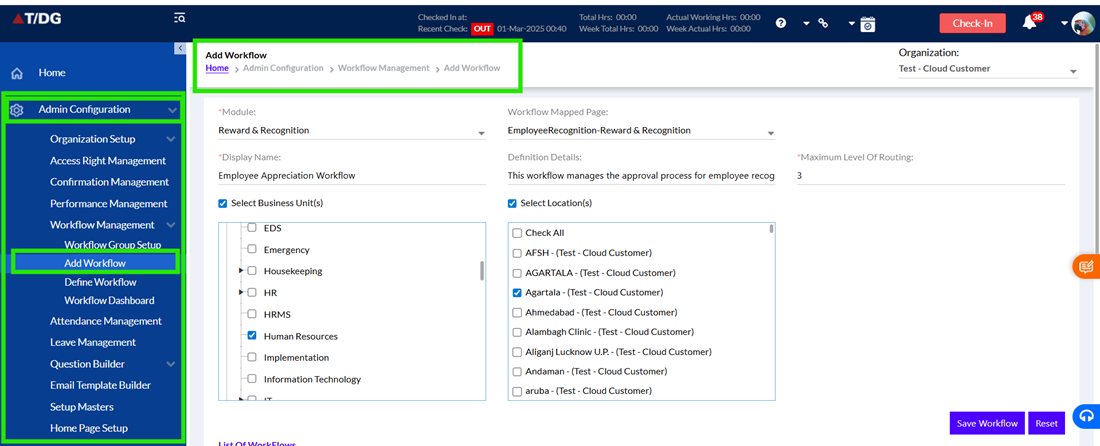
Admin Configuration > Workflow Management > Add Workflow
Users must first select the Module, such as Rewards & Recognition, followed by the Workflow Mapped Page, which represents specific functional areas like employee recognition or jury awards. Next, users must provide a Display Name and Description, which help identify the workflow during selection.
The system also requires defining the Maximum Level of Routing, which determines how many levels of approval are required. For example, Level 1 could be a reporting manager, and Level 2 could be a higher authority.
Once all details are entered, clicking Save Workflow stores the configuration and makes it available for further setup.
2 Defining and Managing Workflows
After creating a workflow, users must configure it by navigating to:
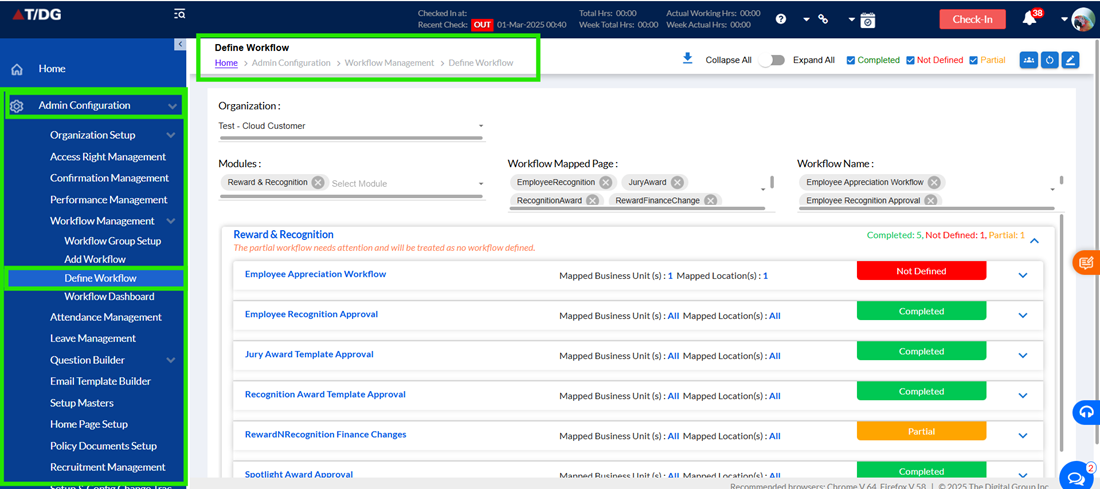
Admin Configuration > Workflow Management > Define Workflow
Here, users select the Organization and Module to view available workflows. The system displays workflow status as:
- Completed – Fully configured
- Partial – Configuration incomplete
Selecting a workflow allows users to define its approval and notification logic. This ensures that workflows are properly structured before being used in the system.
3 Approval Configuration
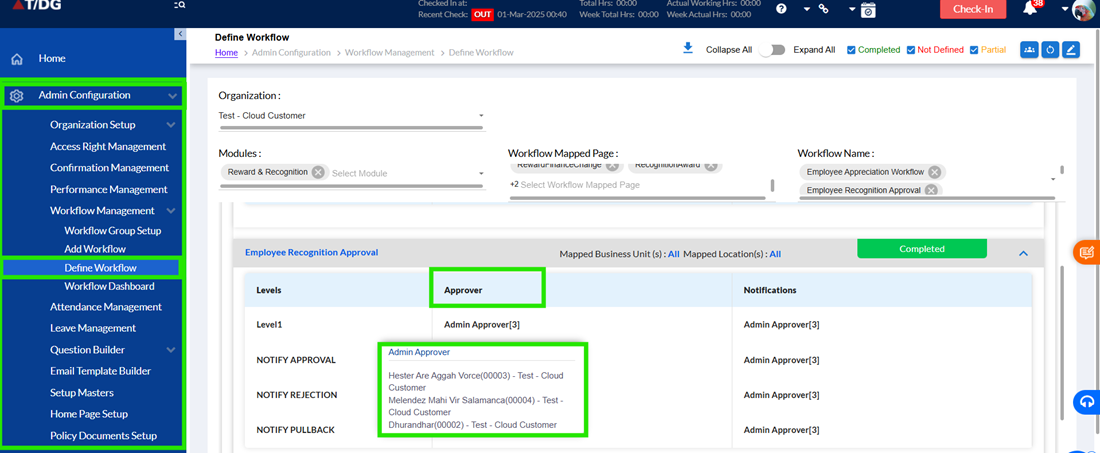
The Approval Section defines users responsible for approving requests. These users receive email notifications whenever an approval action is required.
For example, if multiple approvers are configured, all of them will receive the approval request email. They can review the request and take action (approve or reject). The system allows updating approvers at any time, ensuring flexibility in workflow management.
4 Notification Configuration
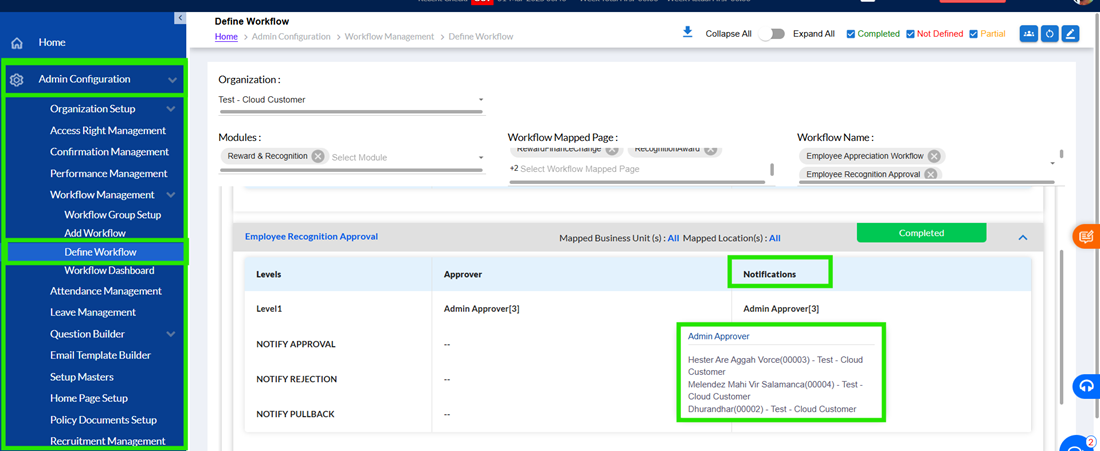
Apart from approvers, workflows also define notification recipients. These users are informed about system activities but are not required to take action.
Notifications can be triggered for events such as:
- Request creation
- Approval request submission
- Approval or rejection
- Pullback of request
This ensures that all relevant stakeholders remain informed throughout the process lifecycle.
5 Email Triggering Mechanism
The system automatically triggers emails based on workflow configuration and user actions. Whenever a user performs an action-such as submitting a request-the system sends emails to the configured recipients.
The email content dynamically includes details related to the action, ensuring that recipients have complete context.
- Emails are triggered instantly upon action
- Content is dynamically generated
- Recipients depend on workflow configuration
Users do not need to manually send emails-the system handles communication automatically.
Finance Configuration Email Flow (Example)
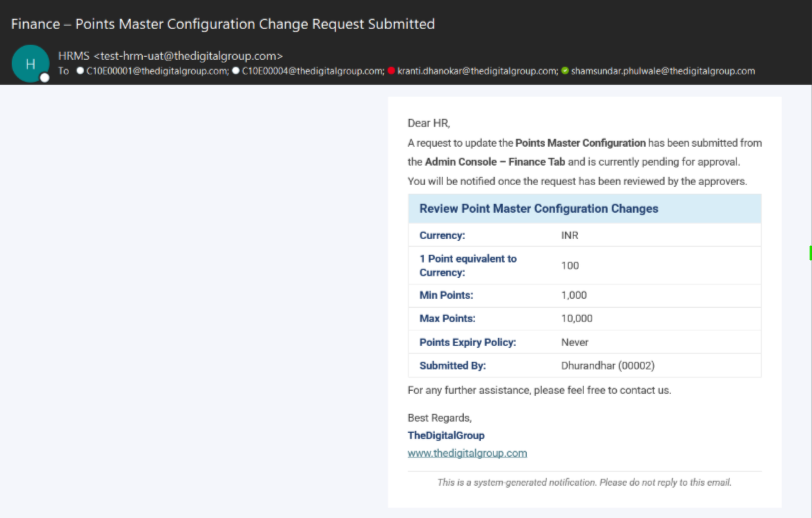
When a user updates finance configuration and clicks Save Configuration, the system automatically sends an email indicating that the changes have been submitted for approval.
This action initiates the workflow, where the request is routed to designated approvers.
1 Types of Emails Triggered
- Approval Request Email
- Sent when a request is submitted. Includes request details and instructions for approval.
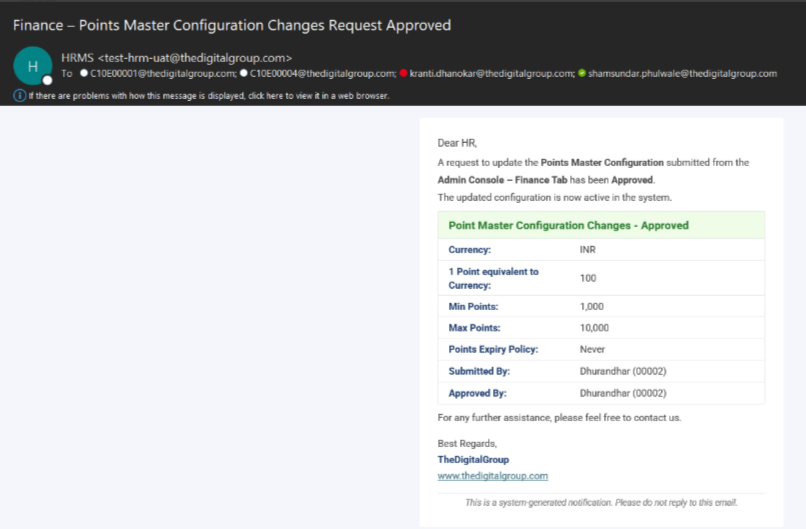
- Approval Confirmation Email
- Sent after approval. Displays approved data with visual indicators (e.g., green highlight).
- Rejection Email
- Sent when a request is rejected. Includes rejection reason and relevant details.
- Pullback Notification
- Sent when a submitted request is withdrawn.
- Each email type corresponds to a specific stage in the workflow, ensuring clarity and transparency.
Recognition Process Overview
The Rewards & Recognition module supports multiple recognition types such as:
- Employee Recognition
- Jury Awards
- Employee Spotlight
- Wall of Fame
- Peer-to-Peer Recognition
All these processes follow the same workflow and email communication structure, ensuring consistency across the system.
1 Submitting a Recognition
To submit recognition:
- Navigate to Give Recognition
- Select recognition type
- Choose employee
- Enter title and message
- Provide reward details
- Click Submit
Once submitted, the system triggers an email to approvers automatically.
2 Recognition Email Details
When a recognition request is submitted, the email sent to approvers includes:
- Employee name
- Submitted by
- Recognition title and message
- Reward details
- Additional metadata
This ensures approvers have complete information before taking action.
3 Recognition Approval Flow
After submission, the request follows the defined workflow:
- Approvers review the request
- They approve or reject it
- System sends corresponding email
4 Consistency Across Modules
The same workflow and email logic applies across multiple modules, including:
- Recognition creation
- Jury awards
- Employee spotlight
- Wall of fame
- Peer recognition
This ensures a standardized and predictable system behaviour across all features.
The workflow and email communication system ensures that all actions within the application follow a structured approval and notification process. By properly configuring workflows, users can automate communication, maintain transparency, and ensure that all stakeholders are informed at every stage of an action.