
RR - Market Place
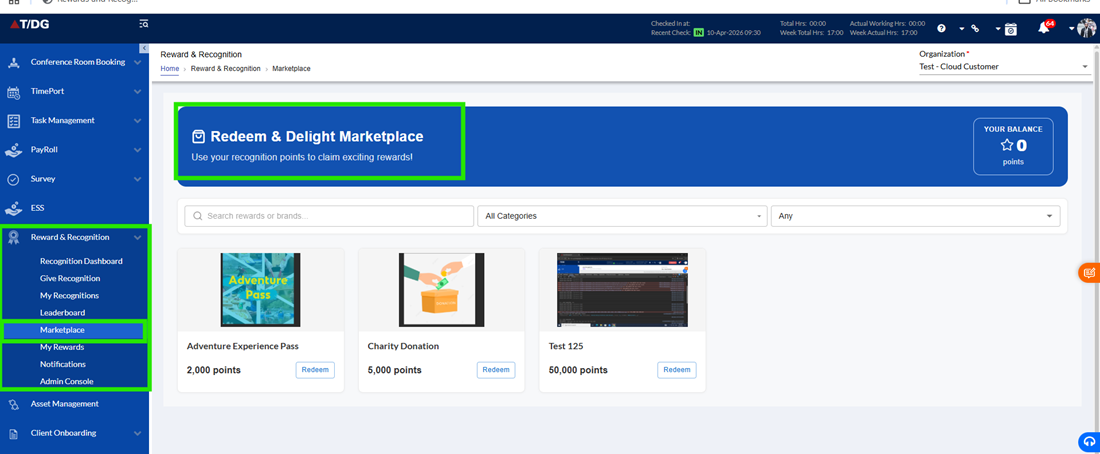
The Marketplace module allows employees to redeem rewards using the points they have earned through recognition. All rewards configured and published by the Admin team in the Admin Console are made available here for redemption.
Overview
The Marketplace feature allows employees to explore and redeem rewards using the points they have earned through recognitions.
This section displays a catalog of rewards that are created and managed by administrators. Users can browse through various reward options and choose to redeem them based on their available points balance.
The Marketplace is designed to provide a simple, transparent, and user-friendly redemption experience, ensuring that users clearly understand reward details and the points required for each redemption.
Key Features
- Rewards Listing
The Marketplace displays a comprehensive list of all available rewards.
Each reward is presented with clear and relevant details to help users make informed decisions. The information provided for every reward includes:
- Reward Name/Title
Clearly identifies the reward being offered - Description
Provides details about the reward and what the user will receive - Points Required for Redemption
Indicates the number of points needed to redeem the reward - Category/Type of Reward
Helps users understand the type of reward (e.g., vouchers, merchandise, experiences, etc.)
This structured listing allows users to easily browse and compare rewards.
- Points Balance Display
The user’s total available points balance is displayed prominently on the top-right corner of the page.
- This helps users quickly understand how many points they currently have
- It allows them to determine which rewards they are eligible to redeem
- Ensures transparency before initiating any redemption
- Reward Redemption Process
When a user decides to redeem a reward, the system follows a clear and guided process.
- The user clicks on the “Redeem” button for the selected reward
- A confirmation message is displayed before proceeding
The confirmation message:
- Informs the user that the required number of points will be deducted from their balance
- Asks the user to confirm whether they want to continue with the redemption
Users are given two options:
- Confirm – Proceeds with the reward redemption
- Cancel – Stops the process without making any changes
This step ensures that users do not accidentally redeem rewards and are fully aware of the points deduction.
- Post Redemption
Once the user takes action on the confirmation prompt:
If Confirm is selected:
- The required points are deducted from the user’s balance
- The redeemed reward is successfully processed
- The reward is added to the “My Rewards” section for tracking and future reference
If Cancel is selected:
- No points are deducted
- No changes are made to the user’s account
- The redemption process is safely aborted