
PMS - Email Template Builder
This section is used by the admin to set up the email templates for various modules. But here we will check how to set up the email template for performance assesment.
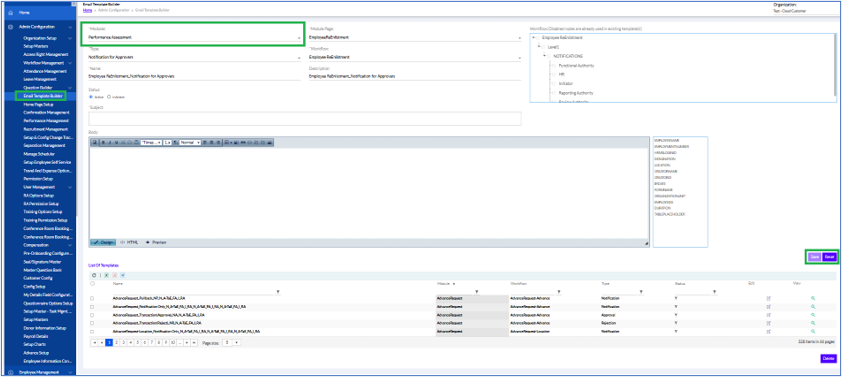
Select the Module, select Module Page, select Type and Select Workflow (if available) from the drop down menu. The Name and Description are automatically displayed.
At the bottom you can add the Subject and Body there is certain Text Editor with bookmarks. These bookmarks are set as per the modules. The required bookmarks can be added to the body. There are HTML or Preview icons at the bottom. In the HTML you can copy the HTML code from source and paste here and preview it. Or create from the UI and preview it.
The email triggered after Performance Assessment initiation can be viewed in PerformanceManagement_Notification.
The email trigger after Employee submission can be viewed in PerformanceAssessment_Notification.
The email triggered after approval of form at each level {PerformanceAssesment_Transaction(Approve)}.
This email triggered after rejection of form at each level { PerformanceAssesment _Transaction(Reject)}.
Workflow-Based Notification Handling Through Email Template Builder
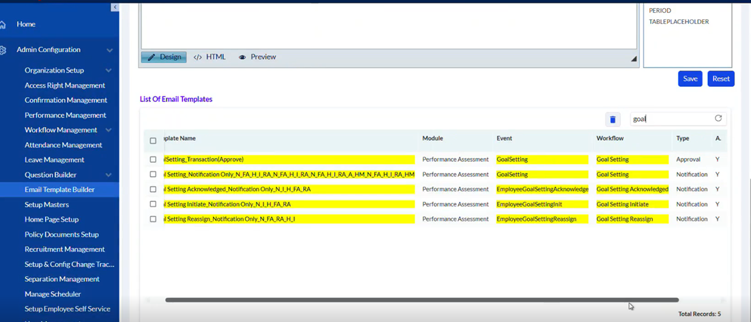
Notification-only events can now be managed through workflows in the Email Template Builder.
Applicable Events:
- Goal Setting Acknowledgement
- Goal Setting Initiation
- Goal Setting Reassign
- Goal Setting Update
Updated Process:
- Navigate to Admin Configuration > Email Template Builder.
- Select the required PMS workflow event.
- Create workflow-based email notifications.