
RR - Admin Console
The Admin Console in the Rewards and Recognition module provides administrative control and insights through two key tabs: Dashboard and Finance. Each tab serves a distinct purpose for monitoring and configuring the system.
1.1 Dashboard
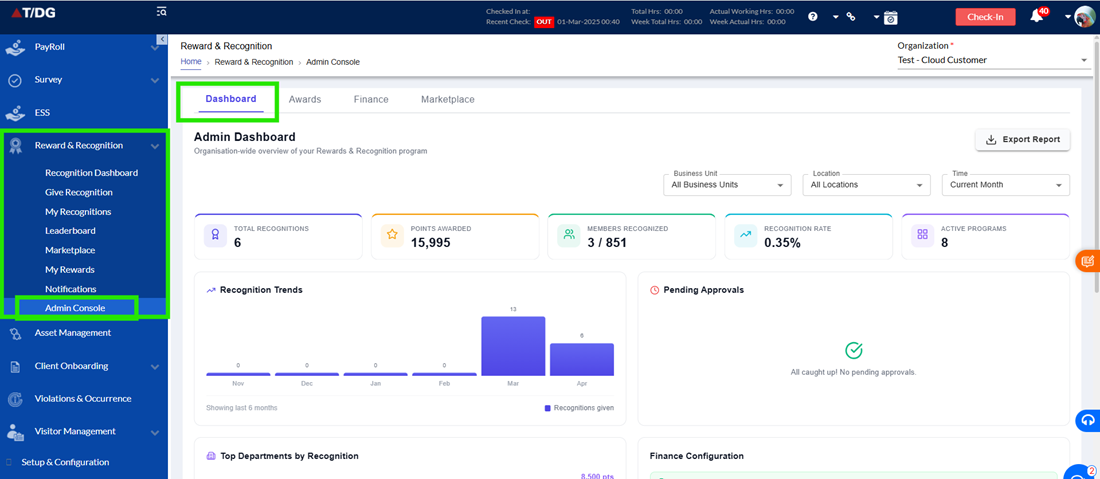
The Dashboard offers a comprehensive overview of the organization’s rewards and recognition activities. It helps administrators monitor performance, track engagement, and take necessary actions.
Key components:
- Summary Metrics
Displays high-level data such as:- Total recognition
- Points awarded
- Members recognized
- Recognition rate
- Active programs
- Recognition Trends
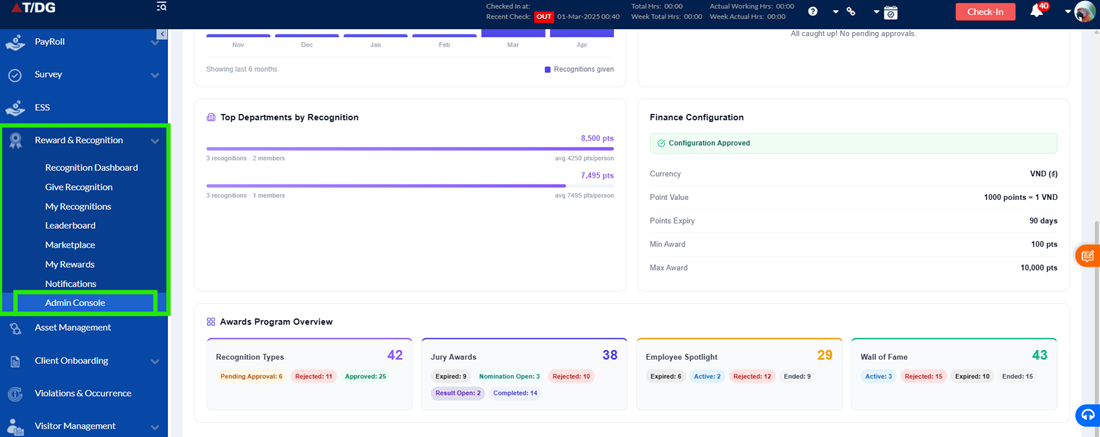
A graphical representation showing recognition activity over time (monthly trends). - Top Departments by Recognition
Highlights departments with the highest recognition count and points distribution. - Pending Approvals
Lists items requiring admin action, such as:- Employee recognitions
- Recognition types
- Finance changes
- Finance Configuration Snapshot
Shows current finance-related settings like currency, point value, expiry, and award limits. - Awards Program Overview
Displays status-wise summaries of:- Recognition types (Approved, Pending, Rejected)
- Jury awards (Result open, Nomination open, Completed, etc.)
- Employee spotlight statuses
- Wall of fame statuses
- Filters & Export Option
Allows filtering by Business Unit, Location, and Time, along with an option to export reports.
1.2 Finance
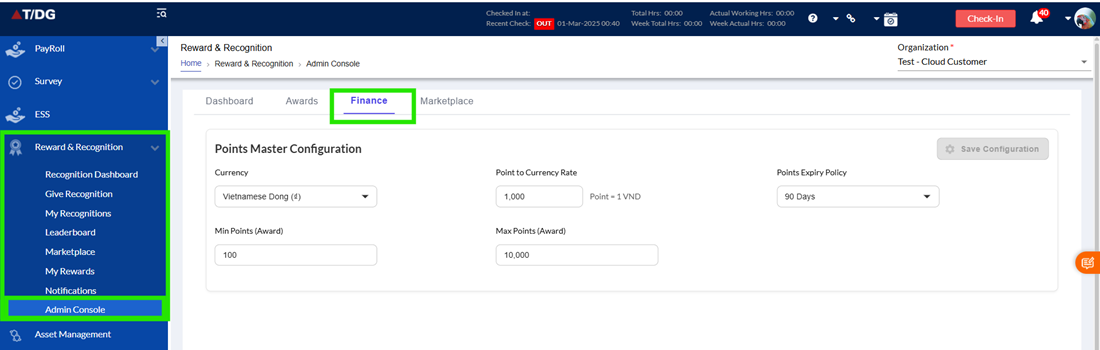
The Finance tab is used to configure and manage the monetary aspects of the rewards system, specifically how reward points are defined and utilized.
Key configurations:
- Currency Selection
Defines the currency used for rewards (e.g., INR). - Point to Currency Rate
Sets the conversion rate between points and currency (e.g., 70 points = 1 INR). - Points Expiry Policy
Determines the validity period of awarded points. - Minimum Points (Award)
Specifies the minimum number of points that can be awarded. - Maximum Points (Award)
Defines the upper limit for points that can be awarded. - Save Configuration
Allows admins to save or update the finance settings.
1.3. Marketplace
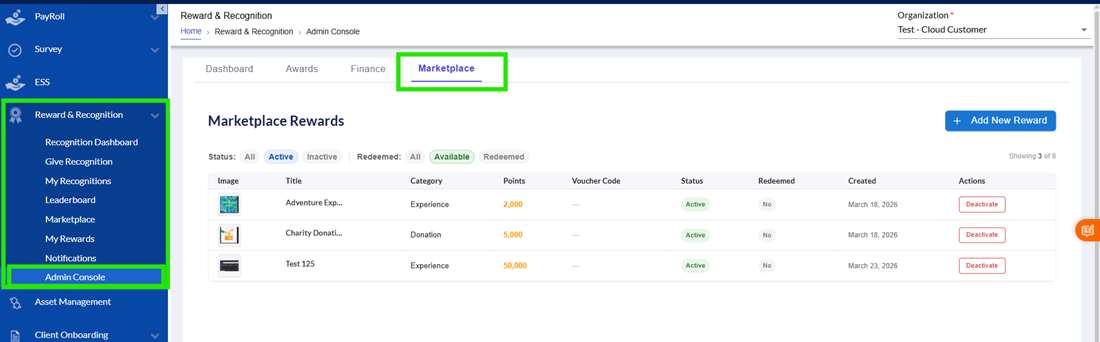
The Marketplace tab in the Admin Console enables administrators to manage and configure rewards that employees can redeem using their earned points. It serves as a central place to create, view, and control all available rewards in the system.
Key Features:
- Marketplace Rewards Listing
Displays a list of all rewards with details such as:- Image
- Title
- Category (e.g., Experience, Donation)
- Points required
- Voucher code (if applicable)
- Status (Active/Inactive)
- Redemption availability
- Created date
- Filters & Status Tabs
Allows filtering rewards based on:- Active / Inactive
- Available / Redeemed
- Add New Reward
Admins can create new rewards using the “Add New Reward”
Create New Reward
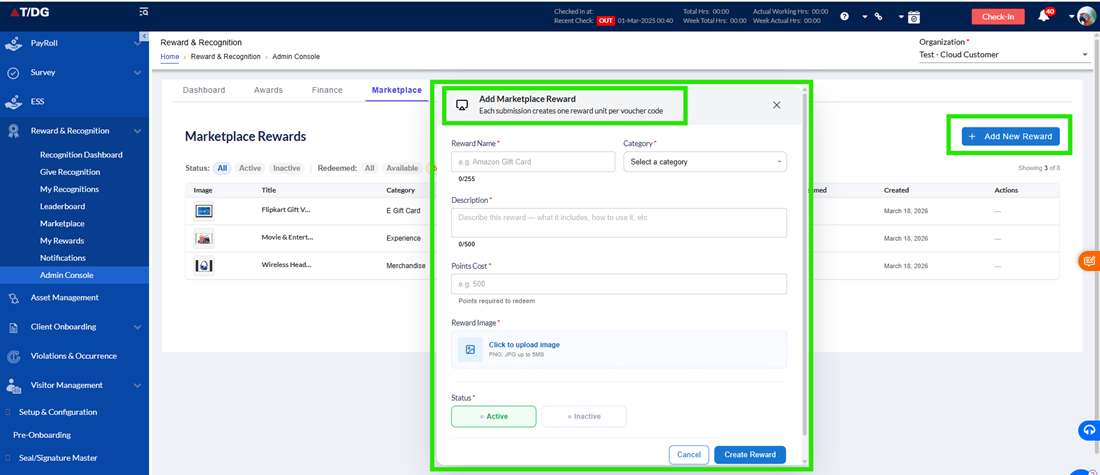
When adding a new reward, the admin needs to provide the following details:
- Reward Name
Name of the reward (e.g., Amazon Gift Card) - Category
Select the type of reward (e.g., Experience, Donation) - Description
Brief details about the reward - Points Cost
Number of points required to redeem the reward - Reward Image
Upload an image representing the reward - Status
Set the reward as:- Active (available for redemption)
- Inactive (not visible to users)
- Create Reward
Saves the reward and makes it available in the marketplace (based on status)
Actions Available
- Deactivate rewards to make them unavailable
- Manage existing rewards
Control visibility and redemption eligibility
1.4 Awards
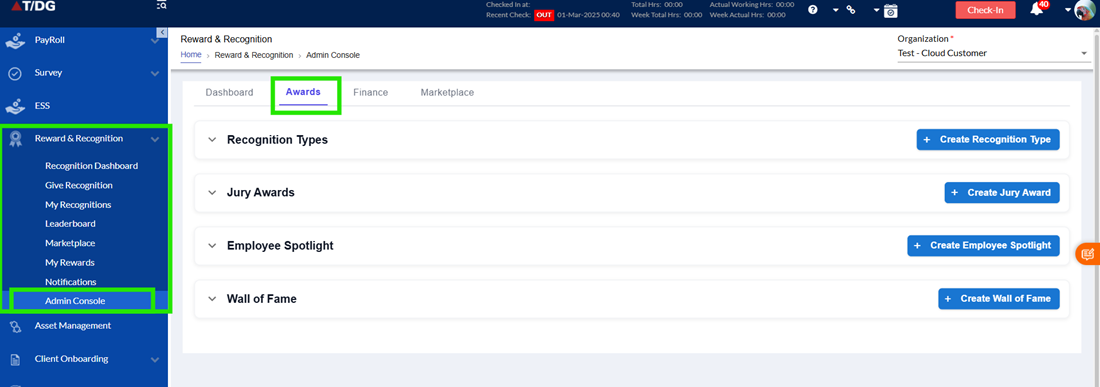
The Awards tab in the Admin Console is designed to manage and configure all recognition programs within the organization. It serves as a centralized space where administrators can create, control, and maintain different award formats that promote employee engagement and appreciation.
Within this tab, administrators can define how recognitions are structured, who can give them, what rewards are associated, and how they are distributed across the organization. The Awards module consists of four key sections: Recognition Types, Jury Awards, Employee Spotlight, and Wall of Fame, each contributing to a comprehensive recognition framework.
- Recognition Types
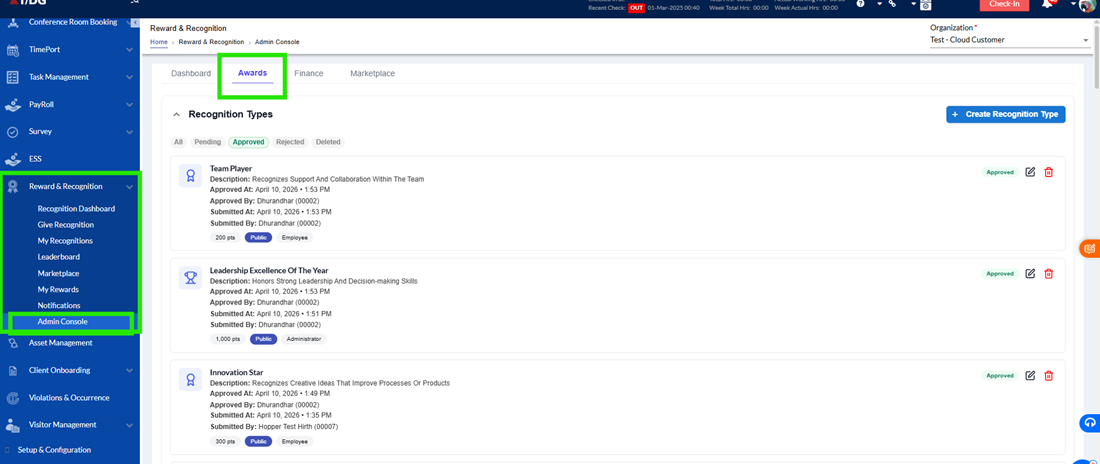
The Recognition Types section allows administrators to create structured award templates that employees can use to recognize one another.
Key Features:
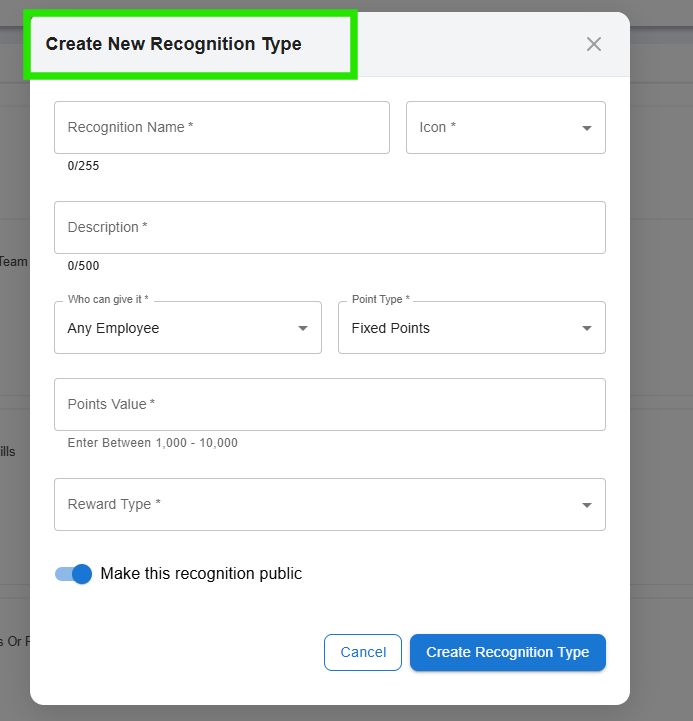
- Template Creation
Admins can define recognition templates by specifying:- Recognition name
- Icon
- Description
- Who can give recognition (e.g., any employee, managers)
- Point type (fixed or variable)
- Points value
- Reward type
- Visibility (public/private)
- Standardized Recognition
Once created, these templates are available to employees across the organization, ensuring consistency in recognition. - Employee Usage
Employees can select a template and recognize their peers based on predefined criteria, making the process simple and structured. - Approval Workflow
Recognition types can go through statuses such as Pending, Approved, Rejected, and Deleted before being made available.
- Jury Awards
The Jury Awards section enables organizations to run structured, evaluation-based recognition programs where winners are selected by assigned jury members. This module ensures a transparent, fair, and criteria-driven recognition process.
A. Jury Awards Listing Page (Overview)
From the Admin Console, the Jury Awards page displays key information for each award:
- Award Name & Description – Overview of the award and its purpose
- Submitted At / Submitted By – Tracks when and by whom the award was created
- Reward Type – Defines the type of reward associated with the award
- Nomination Period – Start and end dates for submitting nominations
- Result Period – Timeline for evaluation and result announcement
This view helps admins track the lifecycle and status of each jury award.
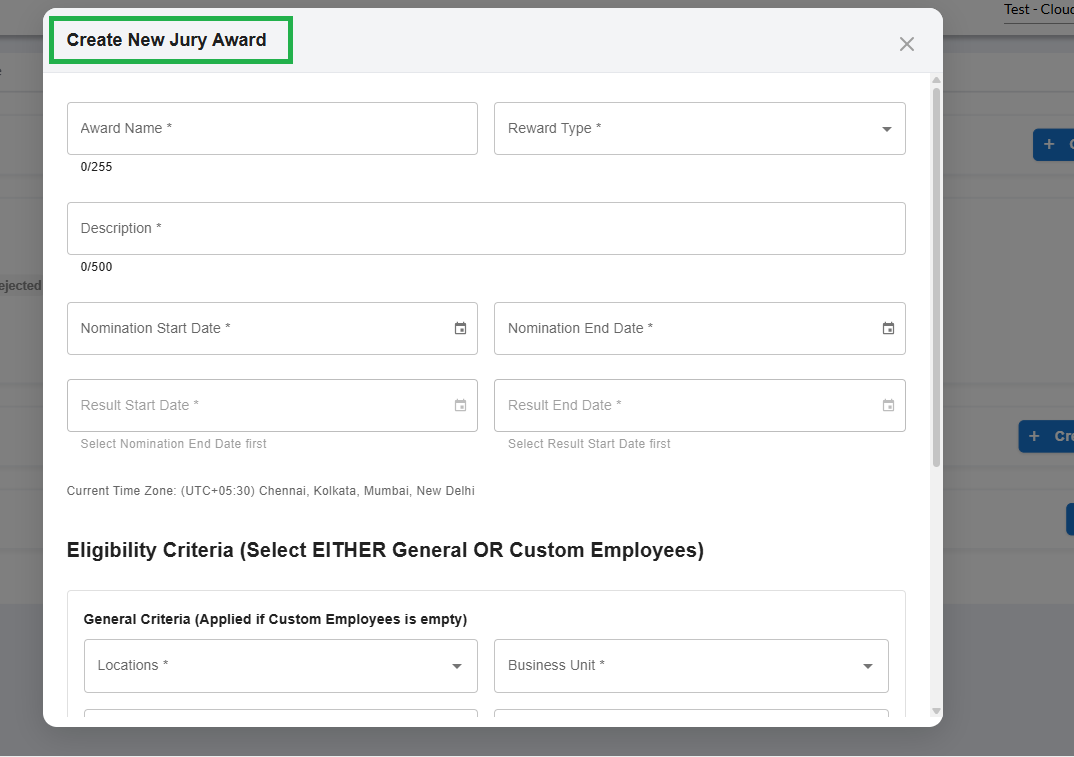
B. Creating a New Jury Award
While creating a Jury Award, the following fields are required:
- Basic Details
- Award Name – Name of the jury award
- Reward Type – Type of reward associated with the award
- Description – Details about the award and its purpose
- Timeline Configuration
Defines the lifecycle of the award:
- Nomination Start Date – When nominations begin
- Nomination End Date – When nominations close
- Result Start Date – When jury evaluation begins
- Result End Date – When results are finalized and announced
- Eligibility Criteria
Admins can define who is eligible for the award using two approaches:
a. General Criteria
Eligibility is defined based on organizational attributes:
- Location – Specific office/location(s)
- Business Unit – Department or division
- Employee Type – (e.g., full-time, contract, etc.)
- Employee Grade – Level or designation
These four parameters together define a broad and rule-based eligibility group.
b. Custom Employees
- Admins can directly select specific employees for eligibility
- Useful when the award is limited to a specific group or shortlisted individuals
- Overrides general criteria and provides precise control
- Jury Members Configuration
- Admins assign jury members who will evaluate the nominations
- Jury members can be:
- Managers
- Leadership team members
- Subject matter experts
- Responsibilities of jury members:
- Review all nominations
- Evaluate based on defined criteria
- Provide scores, ratings, or feedback
- Participate in final winner selection
- Multiple jury members can be assigned to ensure balanced and unbiased evaluation
C. Evaluation & Result Process
- After the nomination period ends, jury members begin evaluation during the Result Period
- Based on their assessment, winners are finalized
- Results are announced within the configured timeline
- Employee Spotlight
The Employee Spotlight feature allows administrators to directly recognize and highlight an employee for their exceptional work, achievements, or contributions. It is designed to showcase success stories and promote employee engagement by giving organization-wide visibility.
A. Employee Spotlight Listing Page (Overview)
In the Admin Console under the Awards tab, the Employee Spotlight section displays the following details for each spotlight entry:
- Spotlight Title – Title of the recognition highlight
- Featured Employee – The employee being recognized
- Story – Description or narrative of the achievement
- Key Achievements – Specific accomplishments or milestones achieved
- Submitted At / Submitted By – Tracks when and by whom the spotlight was created
- Active Time – Duration for which the spotlight will remain visible
This overview helps administrators track and manage all spotlight entries effectively.
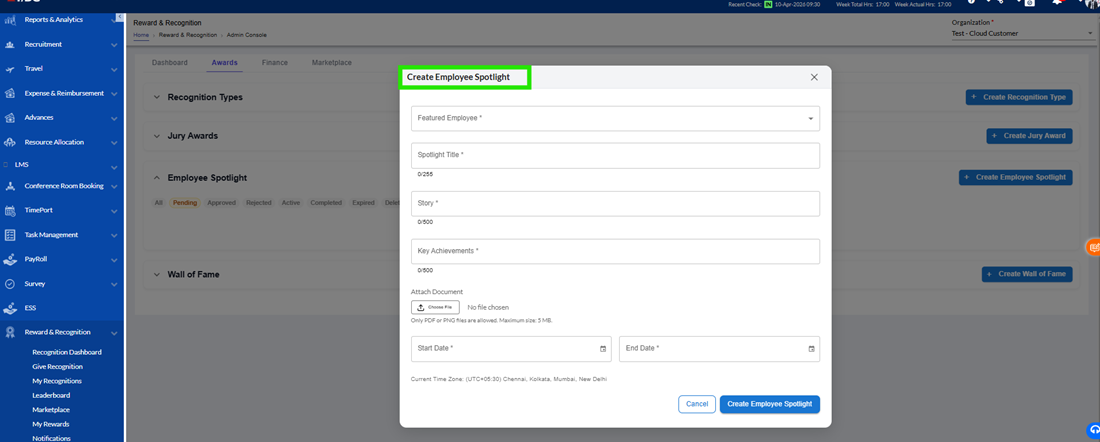
B. Creating a New Employee Spotlight
While creating a spotlight, the following details are required:
- Employee Details
- Featured Employee – Select the employee who will be highlighted
- Spotlight Content
- Spotlight Title – A meaningful title for the recognition
- Story – A detailed description of the employee’s contribution or impact
- Key Achievements – Specific accomplishments during the highlighted period
- Supporting Information
- Attachments/Documents – Option to upload supporting files (if any), such as:
- Certificates
- Project documents
- Evidence of achievements
- Display Duration
- Start Date – When the spotlight becomes visible
- End Date – When the spotlight expires
During this period, the spotlight will be prominently displayed on the Recognition Dashboard.
Key Highlights
- Direct Recognition – No nomination or approval process required
- Storytelling Approach – Focuses on sharing employee success stories
- Dashboard Visibility – Featured employee is highlighted across the organization
- Time-Bound Display – Spotlight is active only for the defined duration
- Wall of Fame
The Wall of Fame is a prestigious recognition feature designed to honor employees for exceptional contributions, long-term achievements, or significant milestones. It represents a high-value acknowledgment and provides organization-wide visibility on the Recognition Dashboard.
A. Wall of Fame Listing Page (Overview)
In the Admin Console under the Awards tab, the Wall of Fame section displays the following details:
- Title (Wall of Fame Title) – Name of the recognition
- Featured Employee – The employee receiving the award
- Story – Description of the achievement or contribution
- Submitted At / Submitted By – Tracks when and by whom the recognition was created
- Active Time Period – Duration for which the award is displayed
This overview helps administrators track all prestigious recognitions in a structured manner.
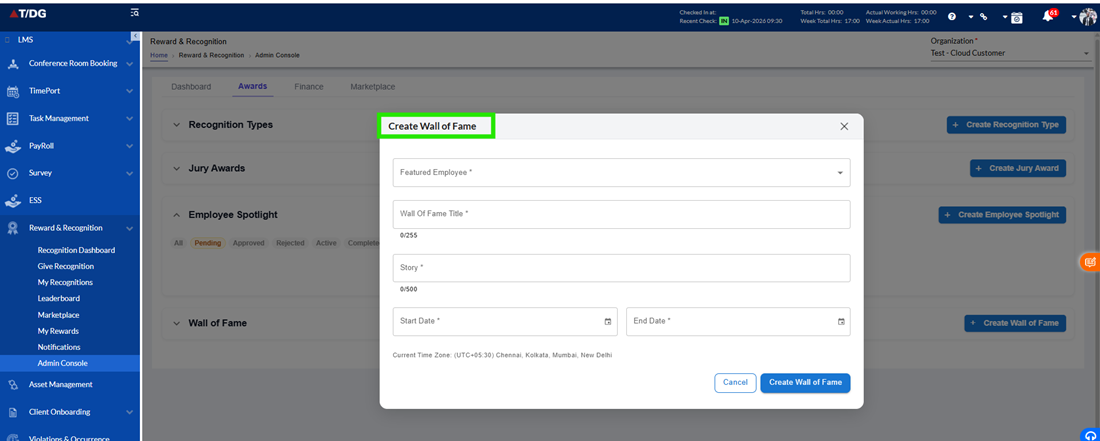
B. Creating a New Wall of Fame Entry
While creating a Wall of Fame award, the following details are required:
- Employee Details
- Featured Employee – Select the employee who will receive the award
- Recognition Details
- Wall of Fame Title – Title of the recognition
- Story – A detailed description explaining why the employee is being honored
- Display Duration
- Start Date – When the award becomes visible on the Recognition Dashboard
- End Date – When the award display period ends
Key Highlights
- Prestigious Recognition – Considered a high-level honor within the organization
- Direct Awarding – No nomination or approval process required
- Organization-Wide Visibility – Highlighted prominently on the Recognition Dashboard
- Time-Bound Display – Visible only during the configured active period
1. Notification Tab:
Notifications Module (Approval Queue)
The Notifications module acts as a centralized approval queue for all activities within the Rewards and Recognition system that require validation. It ensures that all configurations, recognitions, and awards follow the defined workflow before becoming visible to employees.
This module is primarily used by Admins and HR teams, who are responsible for reviewing and approving or rejecting requests.
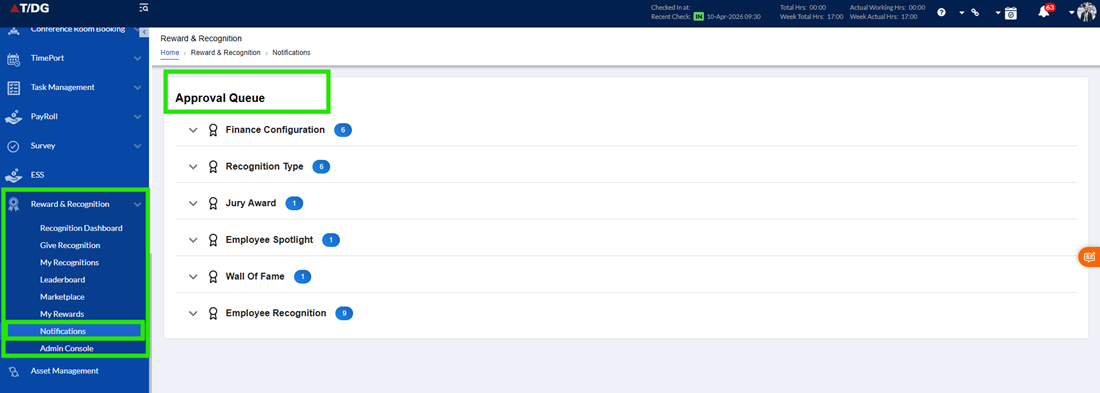
Approval Categories in Notifications
The Notifications tab includes different approval sections, each related to a specific module in the system. Each request contains relevant details along with options to Approve or Reject.
- Finance Configuration
This section displays requests related to changes in financial settings.
Users can view:
- Old Value vs New Value – Clearly shows what changes are being proposed
- Submitted By – The user who made the change request
- Submitted At – Date and time of submission
- Actions – Option to Approve or Reject the request
This ensures that all financial changes are reviewed before being applied.
- Recognition Type
This section includes approval requests for recognition templates created in the system.
Users can view:
- Recognition Name – Name of the template
- Description – Details about the recognition
- Eligible Employees – Who can give the recognition
- Reward Type – Type of reward associated
- Points Type – Fixed or Variable
- Points Value – Assigned points or range
- Visibility – Public or Private
- Submitted By / Submitted At – Request details
- Actions – Approve or Reject
This helps ensure that only valid and well-defined recognition templates are available for use.
- Jury Awards
This section manages approval requests for jury-based awards.
Users can view:
- Award Title – Name of the award
- Description – Details about the award
- Nomination Period – Start and end dates for nominations
- Result Period – Start and end dates for results
- Reward Type – Includes whether monetary reward is applicable
- Eligibility Criteria – General employees or selected employees
- Jury Members – List of assigned jury members
- Submitted By / Submitted At – Request details
- Actions – Approve or Reject
This ensures that jury-based awards are properly configured before being launched.
- Employee Spotlight
This section is used to approve employee spotlight entries.
Users can view:
- Spotlight Title – Title of the spotlight
- Featured Employee – Employee being highlighted
- Story – Description or background
- Key Achievements – Important accomplishments
- Active Time Period – Duration for which it will be visible
- Submitted By / Submitted At – Request details
- Actions – Approve or Reject
This ensures that spotlight content is reviewed before being published.
- Wall of Fame
This section includes approval requests for prestigious recognitions.
Users can view:
- Wall of Fame Title – Title of the recognition
- Featured Employee – Employee being recognized
- Story – Description of achievement
- Active Time Period – Duration of visibility
- Submitted By / Submitted At – Request details
- Actions – Approve or Reject
This helps maintain the quality and credibility of high-level recognitions.
- Employee Recognition
This section contains peer-to-peer recognition requests that require approval.
Users can view:
- Award Title – Name of the recognition
- Recognized Employee – Employee receiving recognition
- Recognized By – Employee who gave the recognition
- Recognition Message – Message shared
- Reward Type – Type of reward
- Points Awarded – Points assigned
- Submitted By / Submitted At – Request details
- Actions – Approve or Reject
This ensures that all recognitions are reviewed before being finalized.