
My Team OT
The manager can click on the My Team’s OT tab to view and manage the Overtime (OT) requests of their team members for any selected period, as highlighted in the screenshot below.
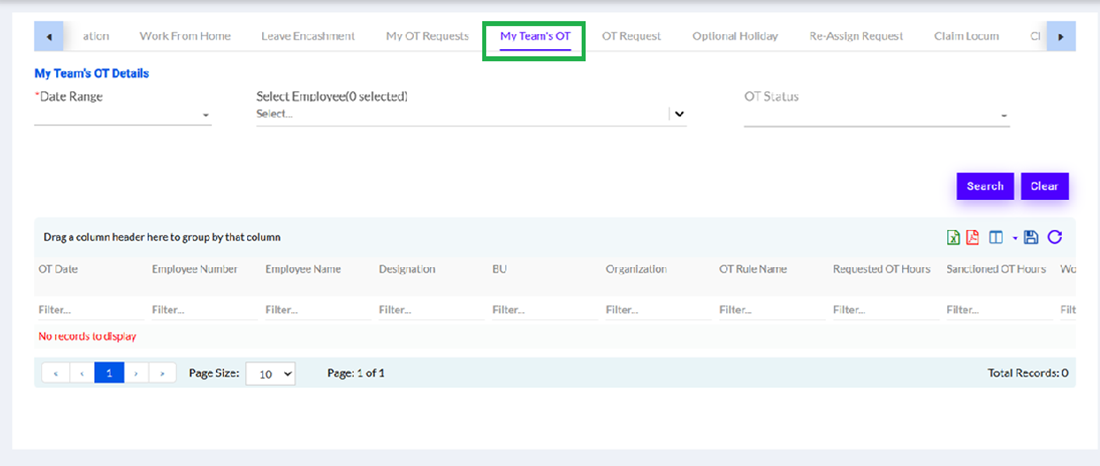
- Date Range: The manager can select the desired date range from the drop-down to filter OT records for a specific duration.
- Select Employee: The manager can choose one or multiple employees from the dropdown to view their OT request details.
- OT Status: The manager can filter requests based on status (e.g., Pending, Approved, Rejected).
- Search & Clear Buttons:
- The manager can click on the Search button to fetch records based on selected filters.
- The Clear button resets all selected filters.
- Data Grid Section:
The manager can view detailed OT records such as OT Date, Employee Number, Employee Name, Designation, BU, Organization, OT Rule Name, Requested OT Hours, and Sanctioned OT Hours. Tabular layouts help organize large datasets efficiently. - Column Filters & Grouping:
The manager can use the filter row under each column to refine results or drag column headers to group data accordingly. - Icons:
- Excel Icon: Export records to Excel
- PDF Icon: Download records in PDF format
- Column Icon: Show/Hide columns
- Refresh Icon: Reload the data grid