
Upcoming Allocations Expiry
The Upcoming Allocations Expiry tab displays all asset allocations that are approaching their end date, enabling administrators to monitor upcoming asset returns and take timely action. The page provides a centralized grid containing allocation details along with options to update or deallocate assets individually or in bulk.
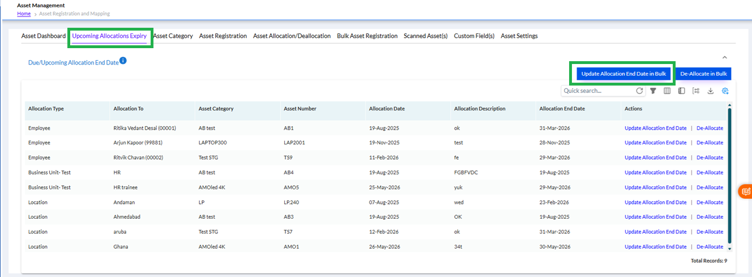
The grid displays the following allocation details:
- Allocation Type
- Allocated To
- Asset Category
- Asset Number
- Allocation Date
- Allocation Description
- Allocation End Date
- Actions
Available Features
- View all upcoming asset allocations with their expiry dates.
- Search allocation records using the Quick Search option.
- Update the Allocation End Date for individual assets.
- Deallocate an asset directly from the grid when required.
- Perform Bulk Update of Allocation End Dates for multiple asset records.
- Perform Bulk Deallocation of selected asset allocations.
- Use the available grid options to refresh, export, print, or customize the displayed data as required.
- View the total number of records displayed in the grid.
The Actions column provides quick access to update the allocation period or deallocate an asset without navigating to another page, making allocation management faster and more efficient.
De-Allocate Assets in Bulk
The De-Allocate in Bulk option allows administrators to deallocate multiple asset allocations in a single action, eliminating the need to process each asset individually. This feature is useful when multiple assets need to be returned or deallocated at the same time.
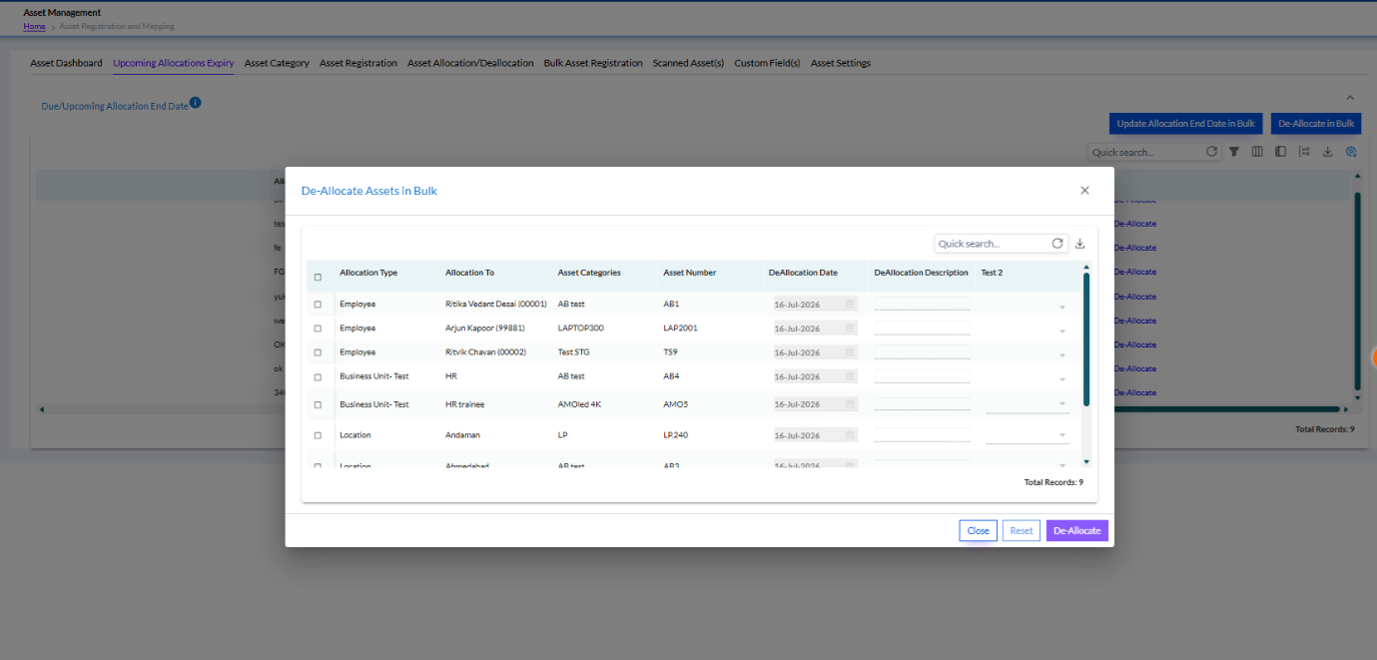
Key Fields
The bulk deallocation window displays the following details for each asset:
- Selection Checkbox– Select one or more asset records to deallocate.
- Allocation Type– Displays the type of asset allocation.
- Allocated To– Displays the employee, business unit, or location to which the asset is allocated.
- Asset Category– Displays the category of the allocated asset.
- Asset Number– Displays the unique asset identification number.
- De-Allocation Date– Specify the date on which the asset should be deallocated.
- De-Allocation Description– Enter the reason or remarks for deallocation.
- Additional Custom Fields– Displays any configured custom fields that must be completed before deallocation.
Features
- Select multiple asset records using the checkboxes.
- Search and filter asset records using the Quick Search option.
- Enter a De-Allocation Date and De-Allocation Description for the selected assets.
- Populate mandatory custom field values, if configured for the organization.
- Click De-Allocate to complete the bulk deallocation process for the selected assets.
- Use Reset to clear the entered values or Close to exit the window without saving changes.
- The Total Records count displays the total number of assets available for bulk deallocation.