
Employee Attendance 360
The following tabs are available within the Employee Attendance 360 option:
- Summary
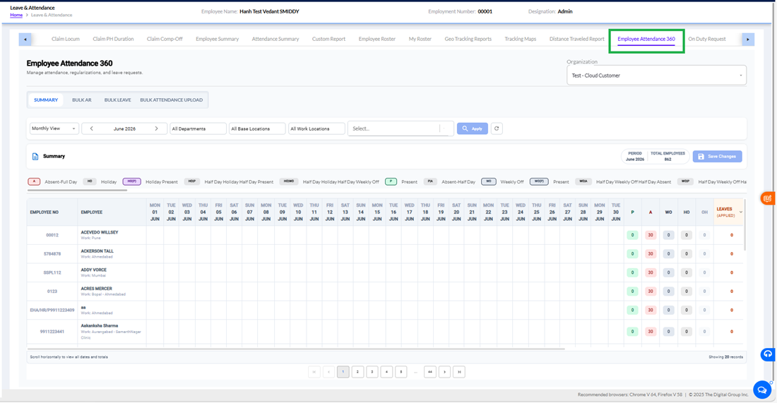
The Summary tab displays the attendance matrix of employees for the selected period. It provides a consolidated monthly attendance view showing daily attendance status, holidays, weekly offs, leave records, and attendance totals.
- Bulk AR
The Bulk AR (Attendance Regularization) tab is used to submit attendance regularization requests for multiple employees simultaneously.
- Bulk Leave
The Bulk Leave feature under Employee Attendance 360 allows administrators to apply leave records for multiple employees at once by uploading an Excel or CSV file. This feature helps reduce manual effort and ensures leave data can be processed in bulk through a standardized template.
Navigation:
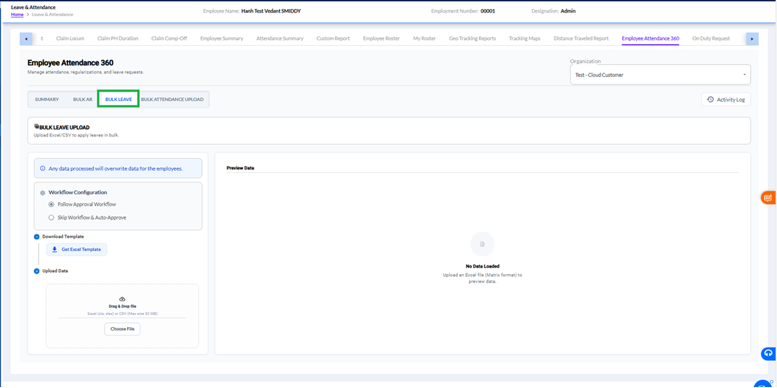
Leave & Attendance >> Employee Attendance 360 >> Bulk Leave
Purpose
The Bulk Leave tab is used to upload leave details for one or more employees in a single action. It is especially useful when multiple employees need to be granted leave for specific dates, such as company events, training programs, shutdown periods, or mass leave updates.
Bulk Leave Screen Overview
- Organization Selection
Select the required organization from the Organization drop-down available at the top-right corner of the screen. The leave upload will be processed for employees belonging to the selected organization.
- Activity Log
The Activity Log button displays the history of previously uploaded bulk leave transactions along with their processing status.
- Information Message
A notification message is displayed:
Any data processed will overwrite data for the employees.
This indicates that if attendance or leave records already exist for the selected employee and date, the uploaded data may replace the existing records.
Workflow Configuration
Before uploading the leave file, select the required workflow option:
Follow Approval Workflow
- Leave requests generated through the upload will follow the configured approval hierarchy.
- The uploaded leave records will be sent to the respective approvers for review and approval.
- Leave balances and attendance records will be updated only after approval, as per the organization's workflow configuration.
Skip Workflow & Auto-Approve
- The uploaded leave requests are automatically approved.
- No approval action is required from managers or approvers.
- Leave records are immediately processed and reflected in attendance and leave balances.
Note: Select the appropriate option based on your organization's leave approval policy.
Download Template
A standard template is provided for bulk leave uploads.
To Download the Template:
- Click Get Excel Template.
- An Excel template will be downloaded to your system.
- Open the downloaded file and enter the required leave information.
Preparing the Bulk Leave Template
In the downloaded Excel sheet, enter the following details:
| Field | Description |
| Employment Number | Employee ID/Employment Number of the employee |
| Date | Leave date in DD-Mon-Year format |
| Leave Type | Type of leave to be applied (Casual Leave, Sick Leave, Earned Leave, etc.) |
| Leave Duration | Full Day, First Half, Second Half, or as applicable |
| Reason | Reason for applying the leave |
| Employment Number | Date | Leave Type | Leave Duration | Reason |
| 00001 | 15-Jun-2026 | Casual Leave | Full Day | Personal Work |
| 00002 | 15-Jun-2026 | Sick Leave | Full Day | Medical Reason |
After entering all required details, save the Excel file.
Uploading Leave Data
Upload Data Section
- Click Choose File.
- Browse and select the completed Excel or CSV file.
- Supported file formats: Excel (.xls, .xlsx), CSV (.csv)
- Maximum file size: 50 MB
After selecting the file:
- Upload the file.
- The system validates the data.
- Uploaded records are displayed in the Preview Data section.
Preview Data
The Preview Data panel displays the uploaded records before processing.
This allows the administrator to:
- Verify employee details.
- Review leaves dates.
- Check leave type and duration.
- Confirm data accuracy before submission.
If any validation errors are found, the system will highlight them so that corrections can be made before processing.
Processing Bulk Leave
Once the uploaded data has been validated:
- Review the records in the Preview Data section.
- Confirm the selected workflow option.
- Process the upload.
Based on the selected workflow:
- Follow Approval Workflow: Requests move to the approval process.
- Skip Workflow & Auto-Approve: Requests are approved immediately.
Note:
- The system supports bulk leave processing through Excel or CSV uploads.
- The Employment Number must match an existing employee record.
- Dates must be entered in DD-Mon-Year format.
- Existing attendance/leave records may be overwritten when processed.
- Use Follow Approval Workflow when managerial approval is required.
- Use Skip Workflow & Auto-Approve when leaves need to be applied directly without approval.
- The Activity Log can be used to track uploaded leave transactions and their status.
- Always verify uploaded data in the Preview section before processing.
Best Practice: Download the latest template each time before preparing a bulk leave upload to ensure that the correct format and columns are used.
- Bulk Attendance Upload
The Bulk Attendance Upload feature enables administrators to upload attendance records for multiple employees simultaneously using a predefined Excel template. This functionality is useful when attendance needs to be updated in bulk instead of marking attendance individually for each employee.
Bulk Attendance Upload
Navigation:
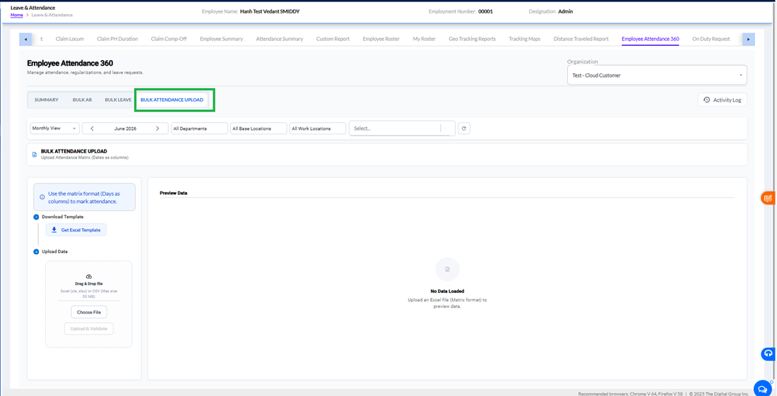
Leave & Attendance > Employee Attendance 360 > Bulk Attendance Upload
Purpose
The Bulk Attendance Upload tab allows users to import attendance data for multiple employees through an Excel file in matrix format, where attendance dates are maintained as columns and employee details are maintained as rows.
This feature helps organizations:
- Update attendance records in bulk.
- Reduce manual attendance entry efforts.
- Process large volumes of attendance data efficiently.
- Maintain attendance records through a standardized upload process.
Screen Overview
- Filters Section
Before uploading attendance, users can filter records using:
- View Type (Monthly View)
- Month Selection
- Department
- Base Location
- Work Location
- Additional employee filters
These filters help users work with attendance data for a specific period or employee group.
- Download Template
The system provides a predefined attendance upload template.
To Download the Template:
- Click Get Excel Template.
- Download the attendance matrix template.
- Open the Excel file and enter attendance details in the prescribed format.
Note: The attendance template follows a matrix format where attendance dates are maintained as columns.
Preparing the Attendance Template
After downloading the template:
- Enter the employee details as required.
- Mark attendance against the applicable dates.
- Use the attendance codes defined by the organization.
- Save the completed Excel file.
The uploaded file should contain accurate attendance information to avoid validation errors during processing.
Upload Data
The Upload Data section allows users to import the completed attendance file.
Steps:
- Click Choose File.
- Select the completed Excel file from your system.
- Supported formats: .xls, .xlsx,.csv
- Maximum file size: 50 MB.
- Click Upload & Validate.
The system validates the uploaded file before processing attendance records.
Preview Data
Once the file is uploaded and validated:
- The attendance data is displayed in the Preview Data section.
- Users can review attendance records before final submission.
- Any validation errors or missing information will be highlighted for correction.
No Data Loaded will be displayed until a valid attendance file is uploaded.
Activity Log
The Activity Log button displays the history of bulk attendance uploads, including:
- Upload date and time.
- Uploaded by.
- Processing status.
- Validation results.
- Attendance upload history.
Note:
- Always download and use the latest attendance template provided by the system.
- Ensure attendance is entered in the prescribed matrix format.
- Only supported file formats (.xls, .xlsx, .csv) can be uploaded.
- Maximum file size allowed is 50 MB.
- Validate the file before processing.
- Review records in the Preview Data section before final submission.
- Use the Activity Log to track previous attendance uploads and processing status.
- Incorrect attendance codes or invalid employee details may result in upload validation errors.
Summary Tab
The Summary tab provides a detailed attendance matrix for the selected month.
Filter Section
The following filters are available:
Month View – Select the attendance month to be displayed.
Department – Filter employees by department.
Base Location – Filter employees by base location.
Work Location – Filter employees by work location.
Employee Search – Search for specific employees.
Apply Button – Displays attendance records based on selected filters.
Attendance Legend
Attendance statuses are displayed using color-coded indicators.
Status Description
- A Absent Full Day
- H Holiday
- HP Holiday Present
- HDP Half Day Holiday Half Day Present
- HWP Half Day Holiday Half Day Weekly Off
- P Present
- PA Absent Half Day
- WO Weekly Off
- WOP Weekly Off Present
- WOH Half Day Weekly Off Half Day Absent
These legends help users quickly identify attendance patterns directly from the attendance matrix.
Attendance Matrix
The attendance grid displays:
Employee Number
Employee Name
Daily attendance status for each date of the selected month
Attendance totals and summary information
Each row represents an employee, while each column represents a day of the month.
Attendance Summary Columns
On the right side of the matrix, attendance totals are displayed for each employee.
P- Displays the total number of Present days.
A- Displays the total number of Absent days.
WO- Displays the total Weekly Off days.
HO- Displays the total Holiday days.
OH- Displays the count of On-Duty or Official Hours records, if applicable.
Leaves Applied
Displays the total number of leave requests applied by the employee during the selected period.
Period Information
The top-right section displays:
Period – Selected attendance month and year.
Total Employees – Total employee records displayed in the attendance matrix.
Save Changes
The Save Changes button is used to save attendance modifications performed within the attendance matrix.
Pagination Controls
Pagination controls are available at the bottom of the screen to navigate through multiple employee records.
Users can:
Move to the next page
Move to the previous page
Jump directly to a specific page
View additional employee attendance records
Important Points
Employee Attendance 360 provides a consolidated attendance management interface.
Attendance records can be filtered by month, department, base location, work location, and employee.
The Summary tab provides a complete month-wise attendance matrix view.
Attendance legends help users understand various attendance statuses.
Bulk AR, Bulk Leave, and Bulk Attendance Upload tabs simplify mass attendance processing activities.
Only authorized users can modify attendance records and save changes.